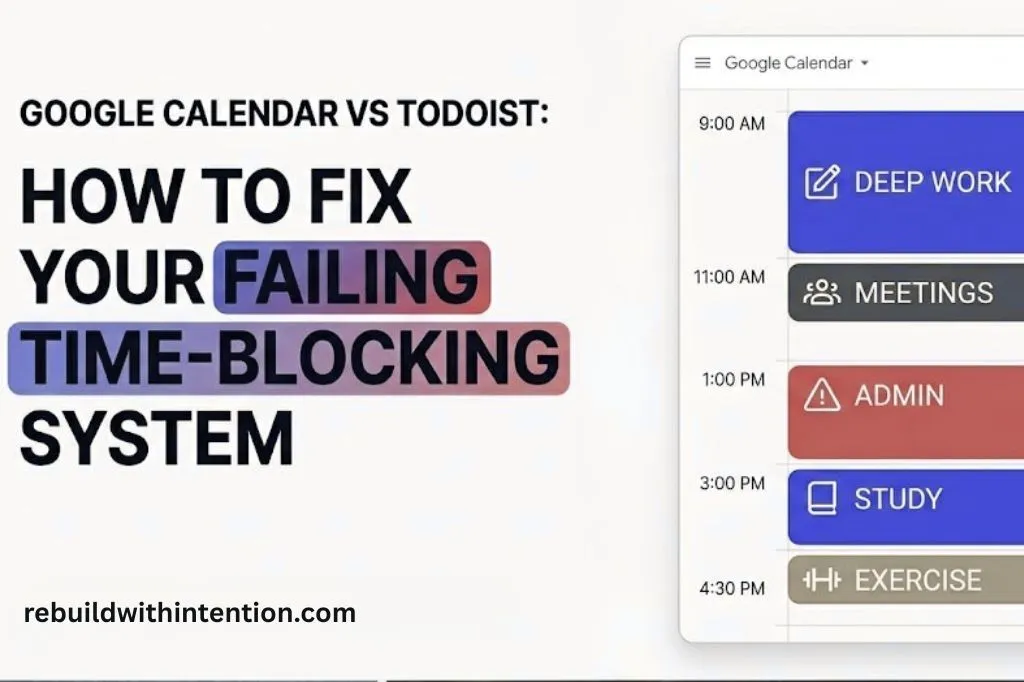
You drag blocks onto a calendar, assign tasks, color-code everything, and for one brief moment, it feels like your life is finally under control.
Then, out of nowhere, one single task takes twice as long as expected. Suddenly, your once-clean system feels like a heavy, exhausting second job.
I understand that feeling of seeing a well-planned week turn into a mess by the next day. I once believed that having a strict, color-coded schedule showed the best discipline.
But the truth is, real discipline is not about guessing what will happen in the future; it’s about creating strong systems that can adjust to what actually happens.
Executive Briefing & Key Takeaways
- Google Calendar is best for visualizing your schedule and setting hard time boundaries.
- Todoist is the perfect engine for capturing, organizing, and prioritizing the actual tasks.
- For maximum productivity, combine both: let Todoist manage the specific work, and let Google Calendar protect the time needed to do it.
- A simple, flexible system you actually trust will always beat a beautifully complex system you end up avoiding.
If you are reading this on Rebuild with Intention, you already know my philosophy. I view productivity not as a trendy buzzword, but as an architectural challenge.
We are building systems to manage our energy, focus, and output. However, when it comes to time blocking, most of us are using fundamentally flawed architecture. Let’s dive into the counterintuitive takeaways that will redefine how you schedule your life.
The Illusion of Perfect Discipline
Time blocking sounds incredibly simple—until you try to live inside it for a week. We sit down on Sunday evening and meticulously script out every minute of the upcoming week. On screen, it looks beautiful.
But why does it usually fall apart?
A lot of people do not fail because time blocking is a bad strategy. They fail because they build a system that assumes perfect energy, perfect timing, and perfect self-control.
That is not discipline. That is fantasy.
Think about it this way: When we engineer systems at work, we must rely on real-world data and radical honesty, not wishful thinking.
Your personal schedule is no different.
If you block every single minute without leaving breathing room, those tight schedules will create guilt incredibly fast. We have to construct a system with acceptable margins of error.
Takeaway 1: You Are Asking the Wrong Question
When trying to improve a workflow, our natural instinct is to look for the “one tool to rule them all.” We want one app to handle everything.
Because of this, we often debate which is better for time blocking: Google Calendar or Todoist. But that is the wrong question entirely.
The real question is: which tool should own your day, and which should stay in a supporting role?
Let me explain using a data analogy.
Your task manager is your backend database—the place where every messy detail, priority level, and sub-task lives.
Your calendar, on the other hand, is your front-end visualization layer. It doesn’t need to hold all the messy metadata; it just needs to show you what matters right now.
Google Calendar
Protects your time and visualizes your capacity.
Best for WHEN & HOW LONGTodoist
Captures, organizes, and prioritizes the actual work.
Best for WHAT & IN WHAT ORDERSo for most people, the strongest setup is always the hybrid architecture.
Takeaway 2: The “Block Container” Paradigm
This brings us to the core secret of systemic resilience, where you must separate the time from the task.
This is called the Block Container Method. You simply let the calendar hold broad categories of focused time, and Todoist hold the exact tasks that can fill those containers.
Instead of filling your day with hyper-specific task names (which break easily if you run late), create simple blocks like these:
- Deep Work
- Admin
- Calls and Meetings
- Study
- Errands
- Workout
For instance, your calendar might say “Deep Work” from 9:00 to 11:00. Meanwhile, Todoist tells you whether that block is for writing a draft, cleaning up a dashboard, or finishing client revisions.
The Container Method in Action
Deep Work
Inside Todoist:
- Write draft for new blog post
- Clean up SQL tracking dashboard
- Review client revisions
The result? Unmatched flexibility.
When life inevitably shifts, you do not need to rebuild your whole productivity system.
You simply move the container block in Google Calendar, then use Todoist to select the exact task that fits in the new time slot.
Takeaway 3: Vague Blocks Are the Enemy of Action
One reason the container method requires a task manager is that weak time blocking often starts with vague blocks.
If your calendar simply says “Work on stuff,” that is not a real plan. It might look organized, but it hides confusion beneath the surface.
Confusion creates friction, and friction creates procrastination.
Every time you hit a vague block, your brain has to waste valuable cognitive energy just figuring out the next step.
This is exactly where Todoist works. It is not just a place to dump tasks; it is where your messy work becomes actionable and manageable.
Using our previous example: when your 9:00 to 11:00 Deep Work block begins, you simply open your Todoist project, review your priority list, and choose the next task.
You are no longer asking, “What should I do now?” You have already paved the road; you just need to drive.
Takeaway 4: Stop Scheduling Every Tiny Task
We all love the quick dopamine hit of checking off a box. And because of this, it is tempting to clutter our calendars with microscopic to-dos.
The Harsh Truth
A bloated task manager creates fake productivity. It gives you the dopamine hit of feeling organized, while actually hiding too many underlying decisions. If you do not limit what gets on your calendar, your system will collapse.
Not every single email deserves a dedicated slot on your calendar. If you want to take control of your time, you must strictly limit what is allowed on your calendar schedule.
You should only time-block things that are important, cognitively demanding, deadline-sensitive, or easy to avoid.
Leave the smaller, routine tasks in Todoist unless they genuinely need scheduled time. Adopting this one habit will instantly make your weekly system feel much lighter and more manageable.
Takeaway 5: The Calendar as a Fortress
If Todoist is your clarity engine, Google Calendar is your personal shield.
Google Calendar is built to answer a simple, vital question: When am I doing this?
Time blocking is not just about organizing tasks with pretty colors; it is a visual commitment. You are giving your work a physical place on the clock.
Moreover, it provides a stark visual reality check. You can instantly see your open space, your crowded space, and whether you are lying to yourself about how much work can actually fit into one day.
If you use a Google Workspace account, Google Calendar also offers Focus Time events.
These blocks can automatically mute chat notifications and decline incoming meeting invites. This feature transforms time blocking from a mere personal plan into an unbreakable boundary.
The Rebuild Workflow: 5 Steps to Systemic Integration
Knowledge is useless without implementation. If you want to operationalize this system in your own life, here is the exact workflow I recommend.
It is simple enough to maintain long-term, without making your week feel heavier.
The System Integration Workflow
Capture everything in Todoist first.
Do not start by drawing blocks on your calendar. Start by getting the work out of your head. Create projects, set priorities, and break bigger work into actionable next steps.
Define your constraints.
Choose your top three to five important tasks for the day or week. Remember, if everything looks urgent, the system will eventually collapse under its own weight.
Establish the foundation.
Open Google Calendar and place your fixed commitments first: team meetings, your daily commute, school, family time, and scheduled workouts.
Deploy the containers.
Add broad, category-based work blocks around the fixed events already on your calendar. Give each block a simple category title (e.g., “Deep Work”), not a hyper-specific task name.
Execute and sync selectively.
When the container time arrives, open your database (Todoist), select the prioritized task, and execute. Sync only if it genuinely helps you see your week better. A clean system always beats a clever one.
Frequently Asked Questions
How do I integrate Todoist with Google Calendar (and why aren’t tasks showing)?
A note on system design: Do not sync every single project. Only sync your high-priority projects, otherwise, your calendar will become a noisy, overwhelming mess.
Is Todoist or Google Tasks better for time blocking?
What is the 1/3/5 rule in Todoist, and does it help?
Wrapping Up
Good time blocking is flexible, not fragile.
If your main goal is strict visual scheduling and boundary setting, go for Google Calendar. If your main goal is managing task overload before it hits your schedule, go for Todoist. But if your goal is building a robust system you can actually trust in real life, the best answer is to use both.
Google Calendar will protect your time, while Todoist will allow you to decide what that protected time is actually for.
The 5-Day Rebuild Challenge
If you want to start building this discipline today, do not over-engineer it. Commit to this simple, frictionless loop before you try to optimize anything else.
Pick tomorrow’s top three essential tasks in Todoist.
Open Google Calendar and create just two broad blocks.
Execute only what fits in the container.
Discover more from Rebuild With Intention
Subscribe to get the latest posts sent to your email.